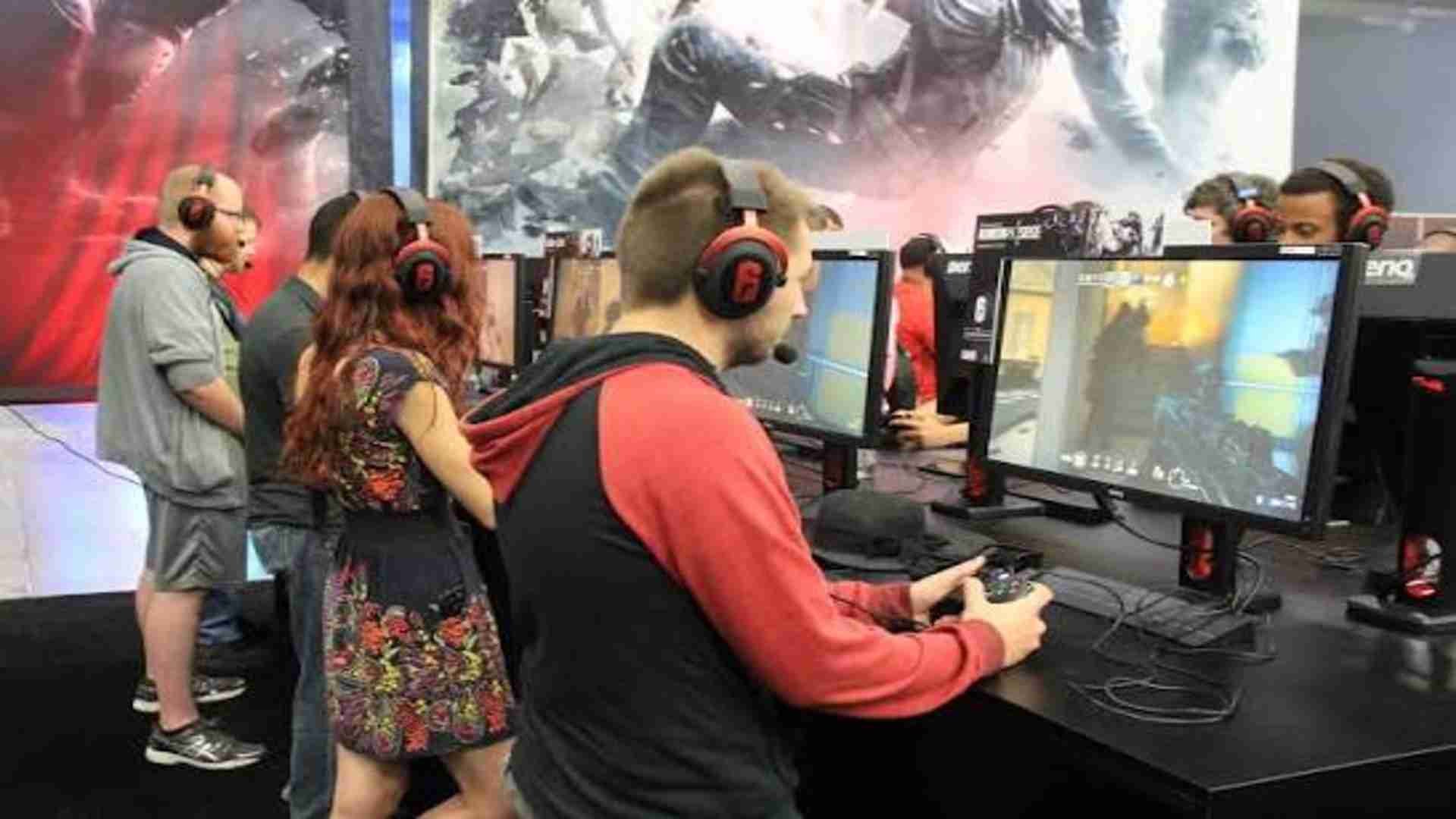
Setting up your PlayStation 5 for local multiplayer is one of the best ways to enjoy shared gaming sessions right from the comfort of your living room couch. While modern gaming frequently prioritizes online matchmaking, the current library offers an incredible selection of collaborative adventures designed for shared display formats. Understanding how to properly sync multiple inputs and configure guest permissions ensures a seamless transition into tactical, side-by-side action.
Syncing Your Second DualSense Controller
Before launching a game, you must establish a secure connection between your additional peripheral and the console hardware. The most reliable method involves connecting the second controller directly to the console using a compatible USB cable and pressing the central PS button. Once the light bar begins to pulse, the console will detect the hardware, allowing you to disconnect the cable and transition to a stable wireless connection via Bluetooth.
If a cable is not readily available, you can also pair the device wirelessly through the console's existing accessory settings. Navigate to the advanced accessories menu using your primary device and select the option to discover nearby Bluetooth signals. Holding down the create and PS buttons on the new device simultaneously will trigger pairing mode, allowing it to sync smoothly without physical tethers.
Managing User Profiles for Local Play
Once the secondary input device is recognized, the system will prompt you to assign it to a specific user profile. For an optimal experience, the second player should sign into a separate, permanent PlayStation Network account to ensure their personal progress and trophies are saved simultaneously. This configuration allows both participants to build their individual game progression and customized loadouts without overwriting the host data.
If you are hosting a casual gaming session for a temporary visitor, selecting the guest account option provides a rapid alternative layout. Guest profiles allow immediate access to local co op features but will automatically delete all accumulated session data once the system shuts down or enters rest mode. It is important to note that certain multiplayer titles require individual profile authentication to access specific advanced game modes.
Configuring In Game Local Co Op Settings
With both input devices successfully assigned to active profiles, you can launch your chosen cooperative or competitive title. Most modern games feature a distinct local multiplayer option within their main menu interfaces, often requiring the secondary participant to press a specific input button to join the active party lobby. The system will then dynamically adjust the display configuration, frequently splitting the screen horizontally or vertically depending on the specific engine design.
To ensure smooth gameplay, it is recommended to adjust the internal display preferences to maximize visual clarity on a shared screen format. Many sports simulation and tactical brawlers utilize a single, unified camera perspective that keeps both characters on screen without dividing the real estate. Choosing the right camera style can significantly improve team coordination and reduce overall visual fatigue during extended play sessions.